Prompting Copilot
This page is about how to write prompts for Propix One Copilot.
You can think of prompting as you having a conversation with one of Copilot's agents.
With a little patience and practice, anyone can become proficient at prompting.
Keep in mind that AI technology is still new and evolving; on the first try, you may not get the exact answer that you are looking for. It is normal to have to adjust the prompt by adding more context, or by dividing the prompt into a series of smaller prompts, much as you might in a conversation with a human teammate.
Tip: If you are new to AI prompting, you might want to start by looking at our short list of important terms.
Use the right agent
Getting the right results starts with choosing the right agent for the job.
Multiple agents are available in the Copilot drop-down. Some agents always come paired with a model (for example, Reporting Agent | Finance Model, Reporting Agent | Personnel Model). Be sure to select the appropriate agent or agent/model combination for your goal.
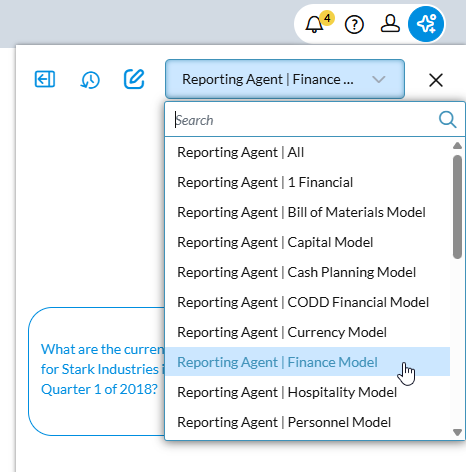
The agents are as follows:
-
Knowledge Assistant: Ask about FP&A Plus features and usage.
-
Task Assistant: Perform tasks using language.
-
Budgeting Agent: Read, update, or create new data in models.
-
Reporting Agent: Explore model data (finance, personnel, revenue, and so on.)
How to prompt
With Copilot, as with any AI, the more precise your prompts, the better the agent can interpret your request and deliver reliable results.
However, Copilot prompts differ from those in general AI tools you may have used, such as ChatGPT.
Whereas any AI responds best to clear, structured prompts, Copilot requires a more specific approach, because the results depend on the way our models are configured. For this reason, you need to follow the Copilot syntax.
Anatomy of a prompt
A Copilot prompt has three parts:
{Agent + Model} + [Task] + [Scope]
These elements of a Copilot prompt function as follows:
Agent + Model
You don't need to specify these in the prompt itself, as you already selected them from the Copilot drop-down. From that point on all your prompts are for that agent and model combination until you end the session or select a different combination.
Models can be standard ones or Detailed Planning; note that Detailed Planning models are denoted with the DP prefix.
Task
The task can be a question or an action/command.
Example of a question: What is the average Senior Engineer salary?
Example of an action: Add 5 Senior Engineers with a salary of 100K. Copy the rest of the attributes from Dottie Smith.
Scope
The scope specifies what members the agent should consider including from each dimension. If you do not specify members from a dimension, the agent uses the chosen model's default values.
Example prompt
You are a budget owner and you want to update the OPEX budget for the Marketing Department at Stark Industries.
The dimensions you are working with are as follows: Account, Department, Entity, Reporting Currency, Time, Time Perspective, and Version.
You proceed as follows:
- From the Copilot drop-down you select Budgeting Agent | Finance.
-
You type the following prompt:
Update the web presence account to 60K for the Product Marketing department in Stark Industries for Q4 2025. Update the budget version.
The prompt breaks down as follows:
-
Task: Update the web presence account to 60K
-
Scope: Product Marketing department in Stark Industries for Q4 2025. Update the budget version.
-
The Budgeting Agent responds as follows:
-
Recognizes your prompt as an update request.
-
Resolves the scope by determining the member selection for each dimension, including the default values:
-
Account: Web Presence
-
Department: Product Marketing
-
Entity: Stark Industries
-
Reporting Currency: NATIVE (default)
-
Time: Q4 2025
-
Time Perspective: Base (default)
-
Version: Budget
-
-
Recognizes that the Time dimension has child members and asks how you would like to spread the values.
-
After you respond Spread evenly, applies 20K to October, November, and December.
Finally, you refresh your screen and see the updated numbers in the data view.
Use cases and examples
More ideas and examples on Copilot prompting, tailored to different roles and situations, are available in the following:
Best practices
Getting the most from your prompts starts with the right inputs. To ensure you maximize your prompt output, be sure to include the best practices described in this section.
Tip: Finance models and Revenue models with a calendar-year Fiscal Year tend to yield the best results.
Be specific
Remove guesswork for the AI: name the dimension, version, or entity you want the agent to focus on. Doing so results in outputs that more closely match your goal. When you are non-specific, the agent uses default values from the model.
Tip: Using keys instead of names can also improve accuracy.
If the agent makes a mistake, restate your request more clearly. Including dimension names gives the agent stronger context and helps it understand exactly what to look for.
The following is an imprecise prompt:
In Scenario C, remove the data in Service Revenue, Product X, Artscape, Cloud, The months in 2025.
The prompt fails because the agent assumes that Artscape and Cloud are products and customers.
To succeed, the same prompt would be written similar to the following:
Remove the data in Version Scenario C where Account is Service Revenue, Product is Product X, Customer is Artscape, Other is Cloud and Time is the months in 2025.
Break it down
AI can struggle with a long, multi-part prompt. Breaking down a long prompt into smaller steps makes it easier for the agent and reduces errors.
Instead of prompting all at once:
Which expense had the highest variance between budget and actual in 2025?
Write your question as a series of prompts:
List all expense accounts.
Show the amounts for each account in January 2025 using the Actual Accruals version.
Compare to the Budget version.
Show the top 5 accounts with the highest variance in a table.
Make your model AI-friendly
How you name dimensions and members in your model directly affects how well the AI understands your prompts. Clear, consistent naming saves time and reduces errors. Some tips for your models:
-
Use human-friendly names
Whenever possible, choose plain, obvious labels.
-
Examples: Version instead of Properties_SC, Gross Margin instead of GM.
-
-
Define unfriendly names
Be explicit in your prompts or explain key mappings up front so the agent can interpret them correctly; if unusual names are unavoidable, define them for the agent at the start of your session:
-
Example: When I say properties, I am referring to Properties_SC.
-
-
Dig deeper
If it's too late to change the model, and you have been explicit and precise but problems still persist, use the Analyze button to see how the agent interpreted your prompt.
Taking a little extra care in how your models are set up or how you explain them makes your prompts more reliable and your answers more accurate.
Always verify responses
The Analyze button is a quick way to verify your response. It shows how the agent interprets your model and helps you refine your prompts for better results.

Troubleshooting
As with any new technology, sometimes AI has hiccups. Please keep in mind the following tips:
-
If nothing displays within 30 seconds, refresh the page.
-
To avoid accuracy issues (hallucinations) owing to long conversations, when changing topics, first use the Clear Chat option.
-
If you don’t know a member name (in Account, Version, and so on), ask the agent to list available options.
-
When changing context, to avoid the risk of hallucinations a best practice is to use Clear Chat .
Feedback, please
You can help Prophix to improve your Copilot experience.
If a response is incorrect or could have been better, please take a moment to click the Thumbs Down icon and tell us what happened.
Include the following:
-
The original prompt
-
What you expected Copilot to return
-
What was wrong or missing
-
Any relevant details (for example, the model type, the version, the time frame)
Terminology
When discussing the art of Copilot prompting, it is useful to know the following terms:
-
Agent
An AI assistant in Copilot designed for a specific purpose (for example, Budgeting Agent); choosing the right agent is critical.
-
Analyze
A Copilot option that reveals how the agent interpreted your prompt and what data the agent chose to use.
-
Clear Chat
A Copilot option that resets your conversation with an agent. Use Clear Chat to switch topics or start fresh.
-
Dimension
A data category in a model (For example, Account, Time, Version) that defines how information is grouped and analyzed.
-
Hallucination
The term for Copilot, or any AI, generating incorrect or made-up responses; hallucinations are more likely to occur after a long session without a reset.
-
Model
A structured data set in FP&A (for example, Finance, Personnel, Revenue) that an agent queries to provide responses.
-
Prompt
A question or instruction that you type in Copilot.
A clear prompt gives the agent specific directions on what you want it to do.
-
Session
One continuous conversation between you and Copilot.
Copilot retains context across prompts until you use Clear Chat or the app session times out. Note that starting a new session clears earlier context.