Prophix Copilot in Teams
Prophix Copilot in Microsoft Teams is a full-featured Teams app that provides a chat-based interface for accessing Copilot capabilities. Teams serves as the entry point, sending user prompts to the same Copilot back-end services used by the Prophix Portal.
The Teams experience functions the same as Copilot in the Portal. It uses the same authentication, authorization, data access rules, and governance controls.
Note: Although Teams and the Portal use the same back-end services, user sessions do not carry over between the two interfaces.
Make Prophix Copilot available in Teams (Admin)
To make the app available to users, administrators must first upload the Prophix Copilot app package to their organization’s Teams environment. This process ensures the app is securely distributed and controlled within your organization for users to access.
Before you begin
-
Ensure you have Teams administrator permissions to upload apps.
-
Obtain the Prophix Copilot app package (.zip) from the Prophix Help Center.
Make the app available to your organization
-
Download the Copilot app package from the Prophix Help Center.
-
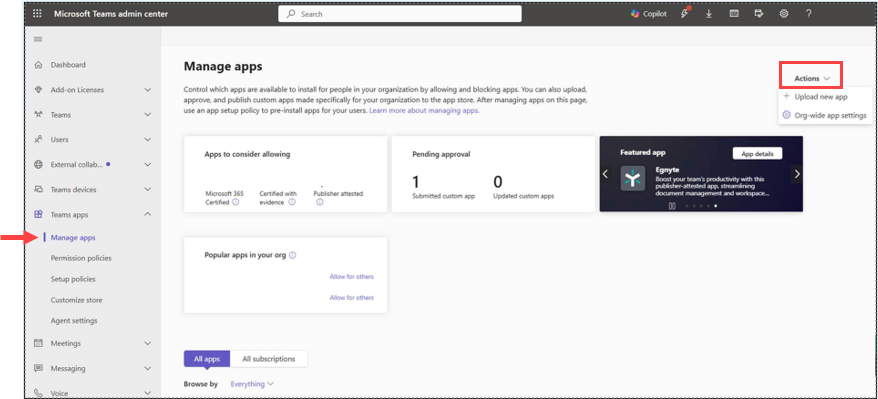
Open the Microsoft Teams Admin Center.
-
Go to Teams apps > Manage apps.
-
Under Actions, click Upload new app and select the app package.
-
Confirm the upload to make the app available in your organization’s app catalog.
-
The Prophix Copilot app becomes available to users within Microsoft Teams.
-
Users can search for the app and add it to their Teams chat.
-
-
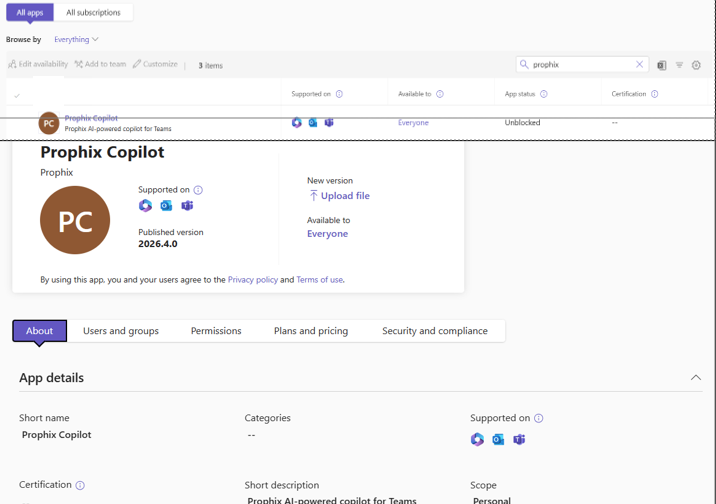
In the About tab, assign users, groups, and permissions if you need to restrict or target access to the app.
Add Prophix Copilot to your Teams chat
-
Open Microsoft Teams.
-
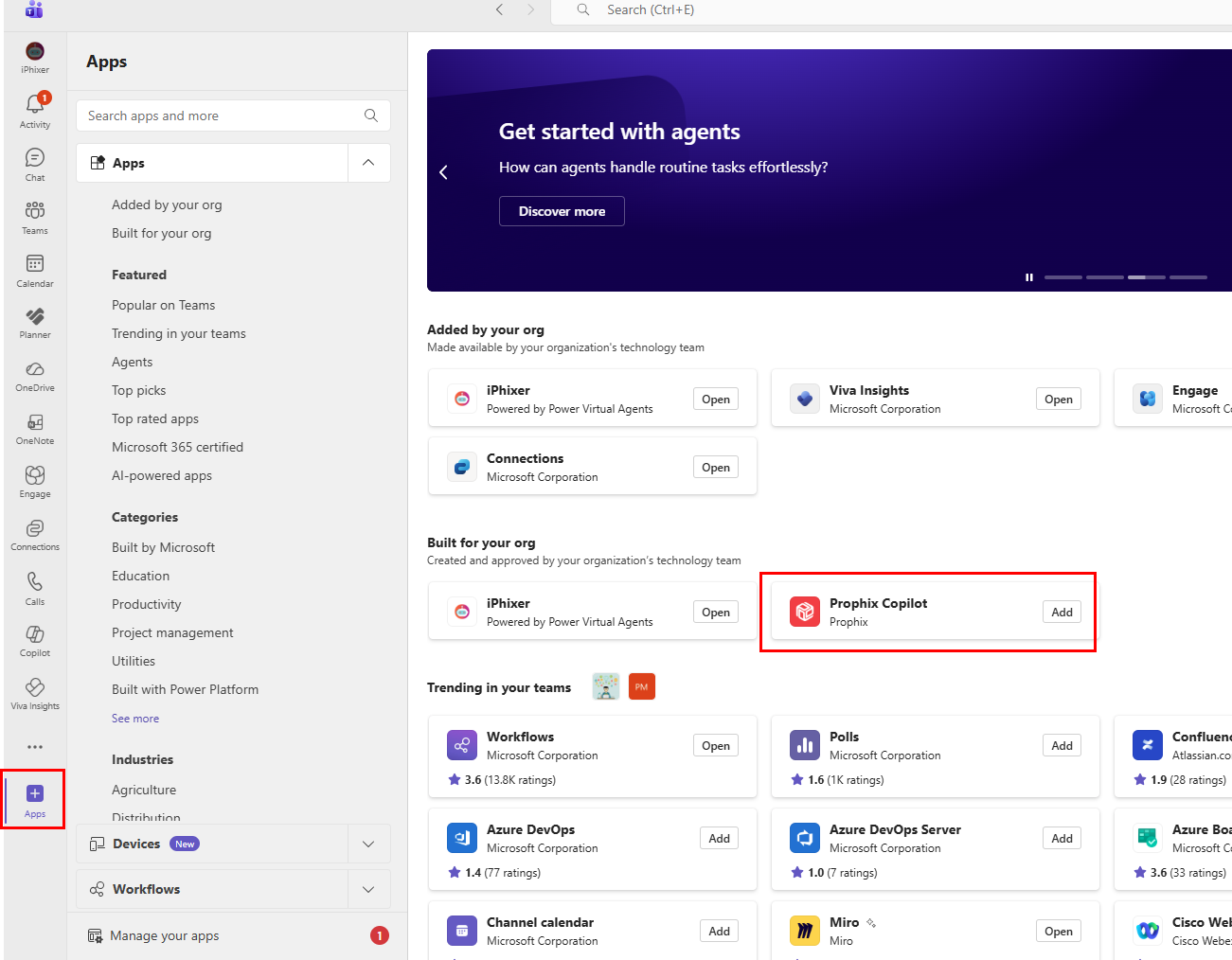
Select Apps from the left navigation.
-
Search for Prophix Copilot.
-
Select the app.
-
The Prophix Copilot description page opens.
-
The Overview and Permissions tabs describe and explain the capabilities of the app.
-
-
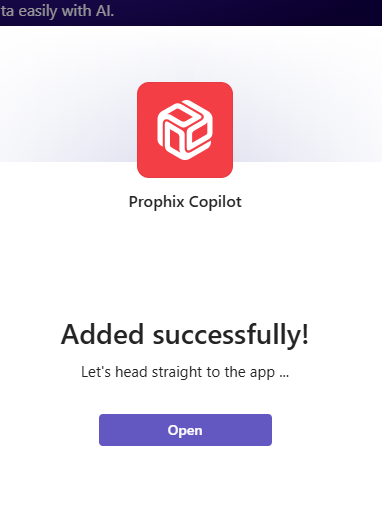
Click Add. Prophix Copilot is added to Teams. A confirmation message displays:
-
Click Open.
-
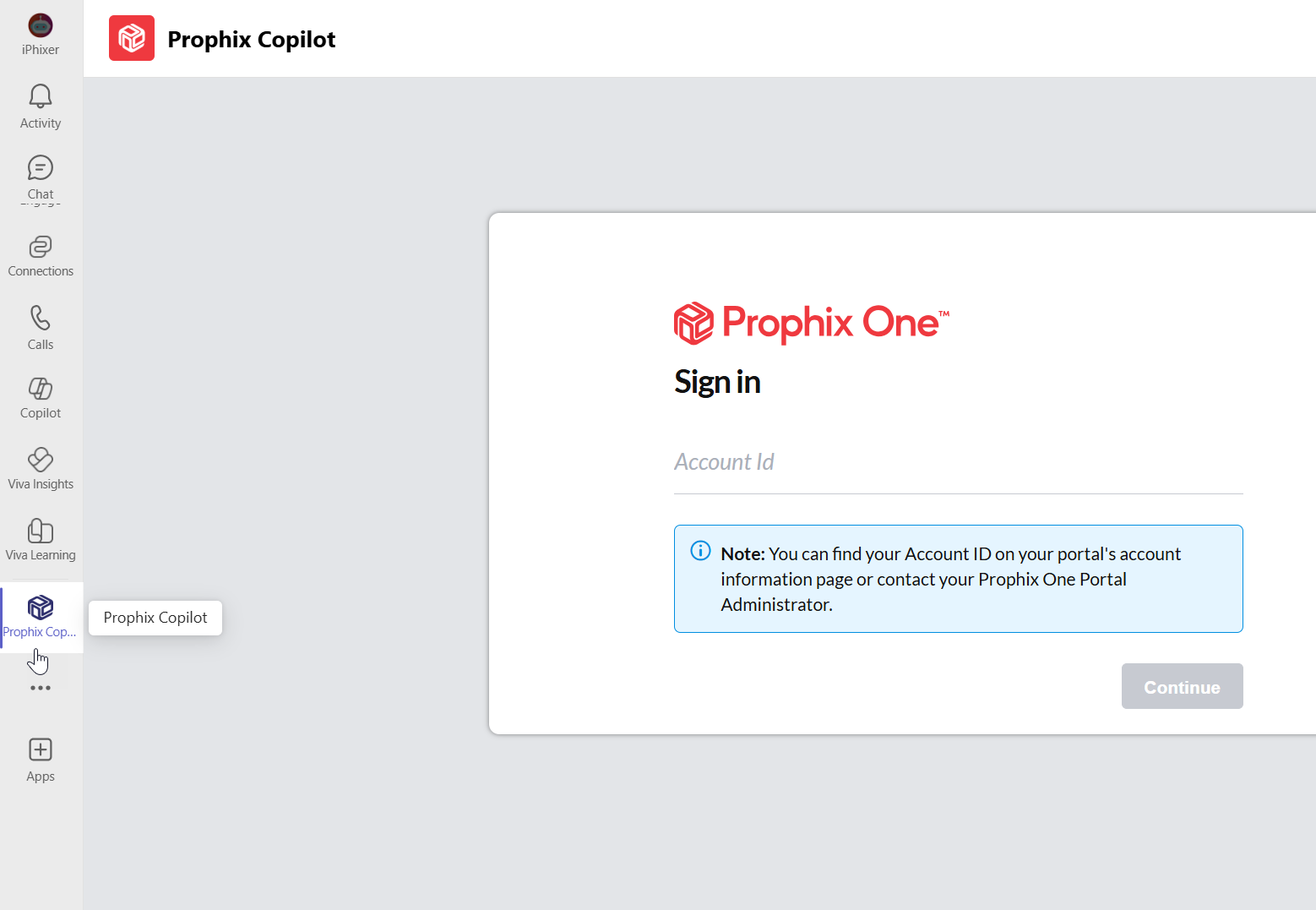
The Prophix One Sign in page opens.
-
The Prophix Copilot icon is pinned to the Teams left menu.
If you do not see it, you can click the three horizontal dots to see more apps that you installed.
-
-
Enter your Account Id to sign in to the Portal. If unsure, contact your Portal admin.
-
Next enter your sign in credentials, and authentication code.
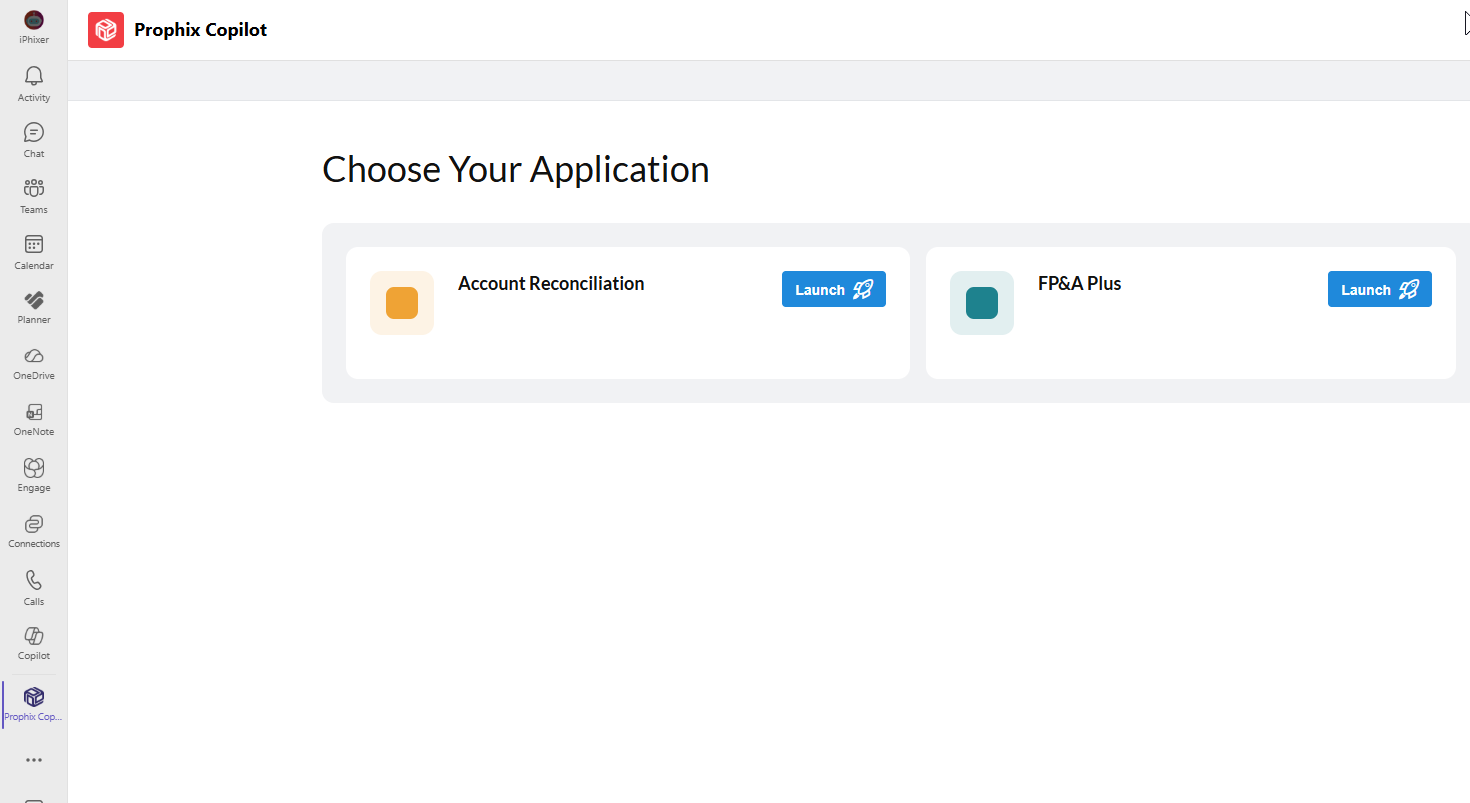
The Choose Your Application page opens.
-
Locate the application you want, and then, click Launch .
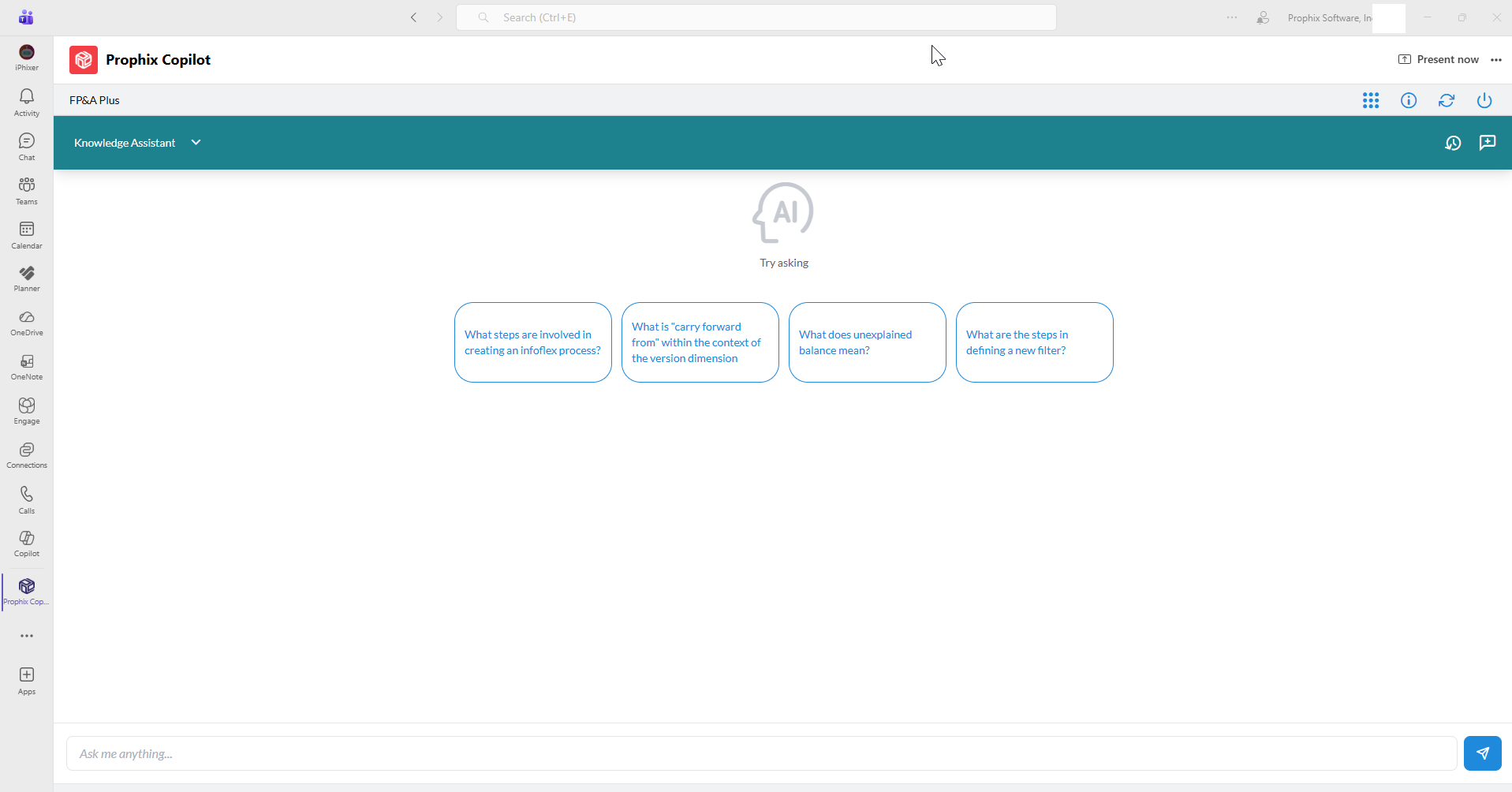
Prophix Copilot opens for the selected application.
-
To sign out, click the Logout icon.
Use Prophix Copilot during a Teams meeting
During a Teams discussion, you can use Prophix Copilot to retrieve an explanation or insight under existing permissions and proceed with your conversation in Teams without the need to switch to the Portal.
-
Open Microsoft Teams.
-
In the left navigation menu, click the Prophix Copilot icon.
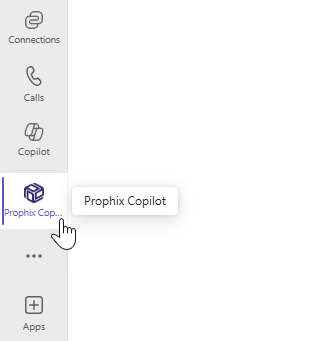
The Prophix One Sign In page opens.
-
Enter your Account ID, and then click Continue.
-
Enter your sign-in credentials, and then click .
The Choose Your Application page opens.
-
Locate the application you want to use and click Launch .
Prophix Copilot opens for the selected application.
-
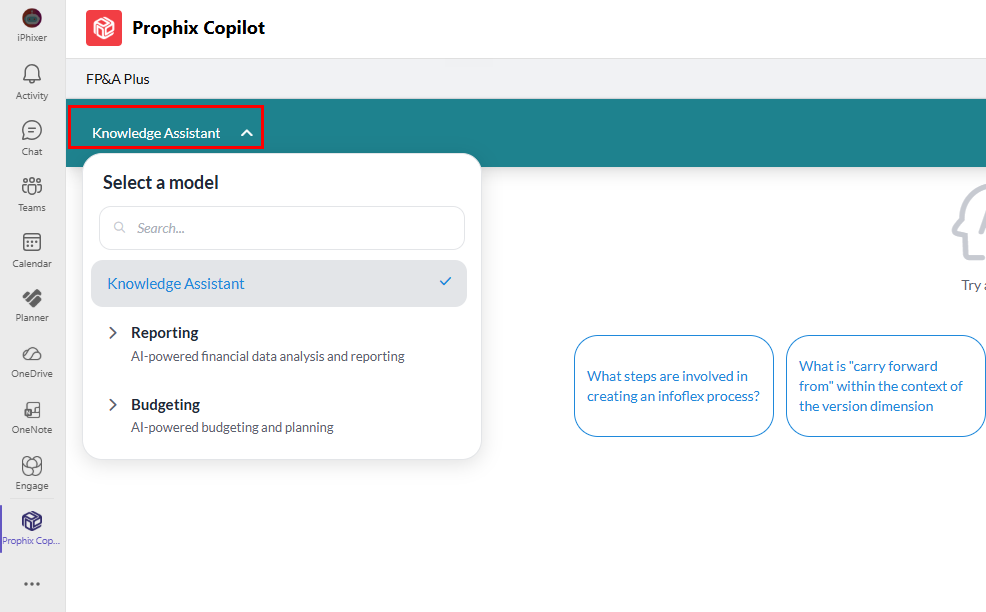
In the Knowledge Assistant panel on the left, select an agent.
Available agents are listed in the Knowledge Assistant panel and are organized by function. See Use the right agent.
-
In the text box below, ask your question and interact with the agent as needed.
For guidance on writing effective prompts, see How to prompt.
-
When finished, click the Logout icon.