MCP Connections for AI
The Prophix MCP (Model Context Protocol) server connects FP&A Plus to external AI tools, such as Claude, ChatGPT, or Microsoft Copilot. Once connected, these AI tools can query your Prophix data directly and answer natural-language questions such as "What was our year-to-date revenue versus budget?"
This article explains what the MCP server does, who can use it, how to get connected. Setup involves two audiences:
-
Administrators configure and manage the connection between Prophix and each AI tool. See Set Up the MCP Server.
-
Users connect their individual accounts once an administrator has completed setup. See Connect Your Account.
For help resolving common problems, see Troubleshooting.
What the MCP server does
When you connect an AI tool to the Prophix MCP server, the AI tool gains access to a set of tools that can retrieve information from your Prophix models. The AI evaluates your question, determines which tools are relevant, builds a plan, and executes it. You do not need to know which tool to use; simply ask your question in natural language.
You can ask questions that span multiple models—for example, combining financial performance data with headcount data to understand how a staffing change could affect your financial statements. The AI can answer only questions for which the MCP server has a tool that can retrieve the required information.
A Claude Project is optional. If you use one, you can configure a system prompt that gives the AI a persona—for example, “Act as a senior financial analyst”—and defines its responsibilities.
A Claude Project's memory is independent of Prophix and has no connection to your Prophix data.
What data the MCP server can access
The MCP server uses your existing Prophix permissions. If you have permission to view specific data in Prophix, the MCP server can retrieve that data for you. If you do not have permission, the request is blocked.
The available tools are grouped by function.
Data Retrieval — Cubes and Financial Models
| Tool | What it does |
|---|---|
|
list_models |
Lists all available running cubes and models in the tenant. |
|
list_dimensions |
Lists all dimensions of a model, including each dimension's name and type. |
|
list_dimension_properties |
Lists the schema of a dimension's properties (name, data type, and referenced dimension, if any) without fetching actual values. |
|
list_members |
Lists all members of a dimension, flat across all hierarchy levels, with optional name filtering and pagination. Used to find a member's key for other tools. |
|
list_member_properties |
Retrieves the full set of property values for one specific dimension member (for example, an account's type or an employee's hire date). |
|
get_model_values |
Retrieves cell values for combinations of dimensions (account, time, version, and so on). |
|
get_layout_values |
Returns structured report data based on row, column, and page axis members. |
|
get_period_comparison |
Compares values between two time periods for period-over-period analysis. |
|
get_tuple_coordinate_properties |
Retrieves metadata and permissions for specific cube cell coordinates. |
|
expand_members |
Expands dimension hierarchy members (children, descendants, leaf nodes, and so on). |
|
get_member_property_key |
Looks up the key/ID for a dimension member by name. |
Detailed Planning
| Tool | What it does |
|---|---|
|
get_attribute_definitions |
Retrieves the full schema and metadata for a Detailed Planning Model. This should be called first. |
|
get_resources |
Queries detailed planning object records with filters. |
|
calculate_dp |
Aggregates employee data (sum, mean, median, and so on) on a specified attribute. |
Math — Aggregate Functions (list inputs)
| Tool | What it does |
|---|---|
|
math_sum |
Sum of a list of numbers. |
|
math_mean |
Arithmetic mean of a list. |
|
math_median |
Median of a list. |
|
math_mode |
Mode (most frequent value) of a list. |
|
math_variance |
Population variance of a list. |
|
math_standard_deviation |
Population standard deviation of a list. |
Math — Scalar Functions (two-value inputs)
| Tool | What it does |
|---|---|
|
math_add |
Adds two numbers. |
|
math_subtract |
Subtracts one number from another. |
|
math_multiply |
Multiplies two numbers. |
|
math_divide |
Divides one number by another. |
|
math_modulo |
Returns the remainder of a division. |
|
math_percentage_increase |
Applies a percentage increase to a value. |
|
math_correlation |
Calculates the Pearson correlation coefficient between two lists. |
|
math_covariance |
Calculates the covariance between two lists. |
How the AI selects the right model
A dedicated tool retrieves the list of available cubes and models in your tenant. The AI uses this information to determine which model applies to your question.
If the AI selects the wrong model, tell it which model to use in your next message. It can then adjust its request and retry.
Set up the connector (Administrator)
The Prophix MCP Server connects FP&A Plus to external large language model (LLM) assistants, including Claude, ChatGPT, and Microsoft Copilot. This section explainsh how to set up each connection. Completing these steps requires access to the Prophix portal and, in most cases, administrator rights in the target application.
-
First, get the credentials you need. See the Prophix MCP Connections article.
-
Connect to your AI tool:
Connect the Prophix MCP Server to Claude.ai
-
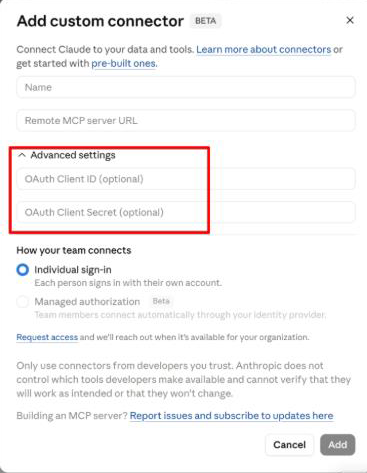
Go to Organization Settings > Connectors.
-
Click Add > Custom > Web.
-
Choose a name for the connector (for example, Prophix)
-
Enter the Prophix MCP URL and Client ID.
-
Click Add to save the connector.
Connect the Prophix MCP Server to ChatGPT
This procedure connects your organization's ChatGPT workspace to the Prophix MCP Server. Only a ChatGPT workspace administrator can complete this procedure. The first time you open the Connectors section, ChatGPT prompts you to enable Developer Mode and accept a security notice.
-
Sign in to ChatGPT and go to Workspace Settings > Apps > Connectors.
-
If Developer Mode is not already enabled, review and accept the security notice when prompted. For details, see: Developer mode and MCP apps in ChatGPT.
-
Click Create.
-
In the Connection field, enter the Prophix MCP URL. You can find this URL in the Prophix portal.
-
Confirm that Authentication is set to OAuth. This is the default setting.
-
Open Advanced OAuth Settings and select User Defined OAuth Client.
-
In the Client ID field, enter the client ID from the Prophix portal.
-
Set Token Endpoint Auth Method to None.
-
Leave the remaining fields as they are. ChatGPT populates them automatically from the MCP URL.
-
Click Accept, then click Create.
Connect the Prophix MCP Server to Microsoft Copilot
Connecting Microsoft Copilot to the Prophix MCP Server requires two procedures. First, you register an OAuth client in the Teams Developer Portal. Then, your IT administrator adds the MCP connection in the Microsoft 365 Admin Center. The Prophix MCP Server supports OAuth 2.0 only.
Register an OAuth Client in the Teams Developer Portal
This procedure creates the OAuth client that Copilot uses to authenticate with Prophix. You need the connection details from the Prophix portal to complete it.
-
Go to the Teams Developer Portal at .dev.teams.microsoft.com
-
Open the Tools section and select OAuth Client Registration.
-
Register a new client and give it a name, such as Prophix.
-
In the Base URL field, enter the MCP endpoint URL from the Prophix portal.
-
In App Settings, select Any Teams App.
-
Enter the following OAuth settings from the Prophix portal:
-
Client ID
-
Client Secret
-
Authorization endpoint
-
Token endpoint
-
Refresh endpoint
-
Scope: openid, profile, offline_access
-
-
Click Save. You may be prompted to sign in and authorize the connection.
-
Copy the OAuth Client Registration ID. You need it to complete the next procedure.
Add the MCP Connection in the Microsoft 365 Admin Center
This procedure adds the Prophix MCP Server as a connector in Microsoft 365, using the OAuth client you registered in the previous procedure. An IT administrator must complete this procedure.
-
Go to the Microsoft 365 Admin Center, then Copilot, then Connectors.
-
Click MCP Connections.
-
Under Add a Connection, select the Created by Your Org category.
-
Click Create a New Connector, then Add, then Connect to MCP.
-
Enter the following connection settings:
-
Base URL: from the Prophix portal
-
Developer Name: Prophix
-
Website URL: https://www.prophix.com/
-
Privacy Policy URL: https://www.prophix.com/privacy-policy/
-
Terms of Use URL: https://www.prophix.com/terms-of-use/
-
Authentication: OAuth 2.0
-
Reference ID: the Client Registration ID you copied in the previous procedure
-
-
Click Create.
-
When prompted, sign in on the Prophix login page and authorize the connection.
-
Once you see a green checkmark, click Create again to finish.
For more information, see Microsoft's documentation: Set up custom federated connectors.
Connect individual account (User)
Before you can use the MCP server, an administrator must complete the one-time organization setup. If that has not happened yet, ask your Prophix administrator..
After your organization's connector is set up, confirm the following:
-
You have your regular Prophix login credentials.
-
You know the name of the connector your administrator created (for example, Prophix – Shared).
1. Connect your account (required once per user)
Each user must connect their own account before using the MCP server.
On Claude.ai
-
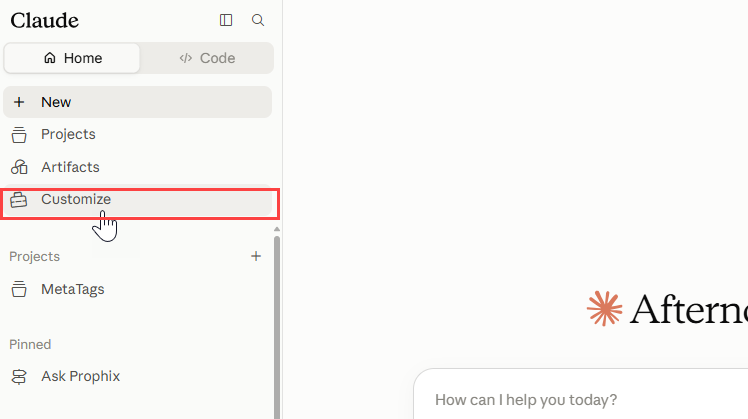
Open Claude.
-
Click Customize.
-
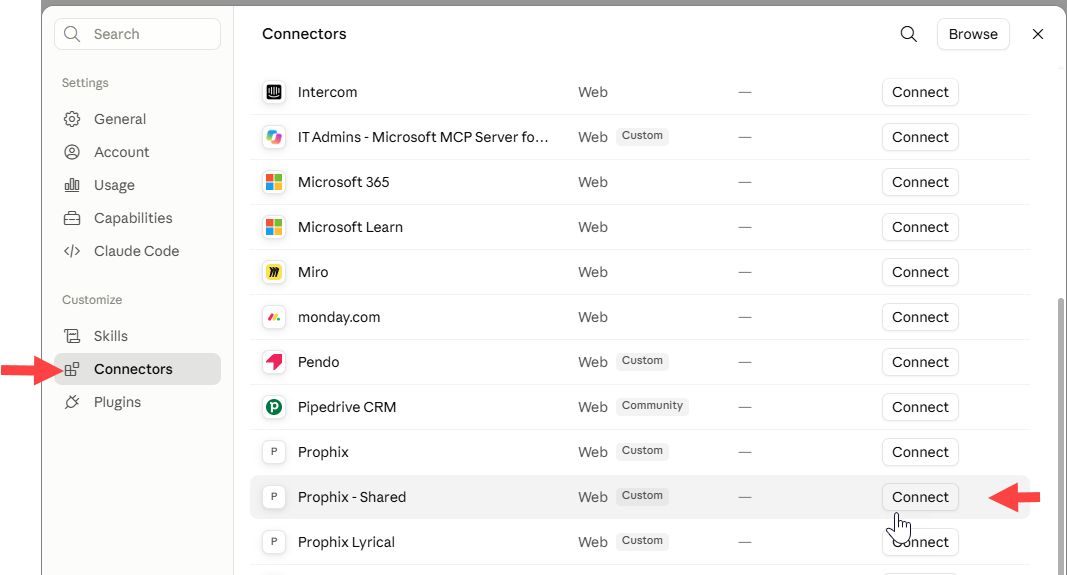
Select Settings > Connectors.
-
Find the connector your administrator created (for example, Prophix – Shared) and select Connect.
-
On the Sign-in page, sign in with your regular Prophix credentials.
On Other Platforms
-
ChatGPT: Go to Settings > Connectors, find Prophix, select Connect, and sign in with your Prophix credentials.
-
Microsoft Copilot: Open Connectors/Integrations panel in Copilot settings, find Prophix, select Connect, and sign in with your Prophix credentials.
2. Turn on the connector for each conversation
The connector must be enabled separately for each conversation in which you want to use it.
You can turn the connector on or off independently for each conversation.
On Claude.ai
-
Open a conversation.
-
In the message input field, select the + button at the bottom left.
-
Select Connectors from the list displayed.
-
Find the Prophix connector and turn it on.
On Other Platforms
-
ChatGPT: Use the attachment/tools (+) menu in the chat, select Connectors, and turn on Prophix.
-
Microsoft Copilot: Use the plugin/connector picker in the chat toolbar and enable Prophix.
What the MCP server cannot do
-
Write data to Prophix. The MCP server is read-only.
-
Retrieve cell comments, row notes, drill-across (transaction) data, or drill-down (LID) data. Support for cell comments and drill-down is planned for a future release; no release date has been confirmed.
-
Use Portal agent on/off toggles to control MCP access. These toggles do not control MCP access. Once the MCP server is generally available, they will not restrict the tools a user can access.
-
Hide tools based on customer configuration. All tools are visible to every customer. Access to specific data is controlled by existing Prophix permissions, not by which tools are visible.
Access control and data security
The MCP server is designed to respect your existing Prophix security and access controls. The following sections explain how permissions, calculations, authentication, and data privacy work when using the MCP server.
Access control and permissions
The MCP server enforces the same access rules as the Prophix application. If you cannot access certain data in Prophix, the MCP server will not return that data, and the request is rejected.
Calculations and data processing
The AI does not perform Prophix calculations itself. Instead, it sends a request to Prophix, which performs the calculation against your model and returns the result.
Secure login
The connection uses OAuth with PKCE (Proof Key for Code Exchange), a modern security standard for connecting applications.
You connect using a URL and Client ID; no client secret is stored or shared. Access is granted through short-lived tokens that expire and must be refreshed. This avoids the need for a long-lived credential.
Data privacy
Once data is sent from Prophix to the connected AI tool, how that data is handled depends on the AI provider's policies and your organization's agreement with that provider.
For example, some free AI services may use submitted data for model training. Confirm your organization's AI license and data-handling terms before using the MCP server with sensitive information.
Troubleshooting
The AI cannot find the right model or gives inconsistent results.
The AI selects a model based on the list of models available in your tenant. If it selects the wrong one, simply tell it which model to use in your next message. It will adjust and retry.
I do not have access to the data I am asking about.
This is expected behavior, not an error. The MCP server enforces the same permissions as the Prophix application. If you do not have access to a piece of data inside Prophix, the MCP server will not return it to you. Contact your Prophix administrator if you believe your permissions should be different.
I cannot see comments, drill-down, or drill-across data.
This is a known limitation of the current release. These features are not yet available through the MCP server. Cell comments and drill-down support are planned for a future release.
The Portal agent toggle doesn't seem to affect what the AI can access.
This is expected. The portal toggle is a separate, UI-level setting and does not control MCP tool access.
FAQs
Can I use the MCP server without setting up a Claude Project?
Yes. A Claude Project is optional. It can be useful for setting a persona or defining standing instructions, but it is not required to use the MCP server.
Can the AI make changes to my Prophix data?
No. The MCP server is read-only. Writeback capabilities are not included in this release.
Are there limits on how many people can query the same model at once?
No additional limits apply beyond Prophix standard rate limits. The same restrictions apply when multiple users query large amounts of data from the same model or tenant simultaneously.
Which AI model should I use—Opus, Sonnet, or Haiku?
There is no MCP-specific restriction on which model you use. Select the model that best fits the complexity of your question.
Can I use the MCP server as a general-purpose API outside of an AI tool?
Yes. The MCP server can be used by applications directly, without an AI tool. Applications can retrieve data using JSON-RPC 2.0 rather than a standard REST request.
Use cases
The examples below illustrate how finance leaders can move from a business question to analysis, insight, and action in a single workflow. Each use case shows a practical prompt that a CFO, FP&A leader, or department head could use in their day-to-day work.
Use Case 1 — Build a live CFO dashboard on demand
What it does: Create a board-ready view of financial performance with automatic variance identification
Example: Build me a dashboard showing YTD Revenue, Gross Margin %, EBITDA, and OpEx vs. Budget — Consolidated, through April 2025.
Output: A live dashboard with key KPIs, budget variances, and automatic flags for areas requiring attention.
Use Case 2 — Benchmark our performance against the market
What it does: Combine internal financial performance with external industry benchmarks.
Example: Search the web for average SaaS gross margin benchmarks for 2025 and compare ours.
Output: An internal-vs.-market comparison supported by external benchmark data.
Use Case 3 — Turn variances Into a board-ready story
What it does: Transform financial results into concise executive commentary.
Example: Write a three-paragraph executive summary explaining April's results, the key variances, and what it means for the full-year outlook.
Output: Board-ready narrative that explains not just what changed, but why it matters.
Use Case 4 — Analyze FX impact using live exchange rates
What it does: Combine revenue by currency with current FX rates to quantify currency exposure.
Example: Calculate the FX headwind or tailwind on Q1 revenue if we restate at current rates.
Output: FX impact analysis, including currency-level sensitivities and total revenue impact.
Use Case 5 — Connect the full finance data picture: Prophix + ERP + HRIS + Project Tools
What it does: Reconcile financial information across planning, ERP, HR, and operational systems.
Example: Pull our Q2 OpEx budget from Prophix and compare it against actual spend posted in NetSuite — show me the variance by cost category.
Output: A reconciled view of budget vs. actual across connected systems.
Use Case 6 — Identify emerging financial risks
What it does: Detect unusual cost volatility and potential risks before quarter-close.
Example: Which cost lines have had the highest month-over-month variance so far this year? Rank by volatility.
Output: A prioritized risk radar highlighting unusual trends and potential areas for intervention.
Use Case 7 — Build an investor relations data pack
What it does: Assemble an earnings-ready data pack with analyst-consensus comparisons.
Example: Search the web for analyst consensus estimates for our Q1 2025 results and show me where we beat or missed.
Output: An analyst-consensus comparison suitable for earnings preparation and investor-relations review.
Use Case 8 — Give my department's financial dashboard
What it does: Give department's live budget-vs-actual view with RAG indicators.
Example: Build me a dashboard for Engineering's budget vs. actual spend through April 2025. Include monthly trends, YTD variance, and RAG indicators for material variances..
Output: A department-level financial dashboard that enables managers to monitor and understand their own budgets.
Use Case 9 — Benchmark headcount costs against the market
What it does: Combine internal compensation data with external salary benchmarks to support workforce planning.
Example: Search the web for 2025 salary benchmarks for Senior Software Engineers in Toronto and San Francisco and compare to our salaries.
Output: Market compensation comparison plus a workforce-cost model for hiring scenarios.
Use Case 10 — Re-forecast my budget mid-year through conversation
What it does: Model mid-year budget changes interactively without rebuilding the forecast manually.
Example: I want to reduce contractor spend by 20% in H2 and reallocate it to software tools. Show me the revised budget.
Output: A revised forecast with the reallocation modeled and its impact clearly explained.
Use Case 11 — Track CapEx With external market intelligence
What it does: Combine project financials with external cost indicators to assess whether remaining budgets are realistic.
Example: Search the web for current commercial construction cost indices for our region and check if our remaining budget is realistic.
Output: A project-budget assessment enriched with current external cost data.